
Multi-Factor Authentication (MFA) Troubleshooting & FAQs
| Purpose |
Review frequently asked questions and login troubleshooting guide for Multi-Factor Authentication (MFA) with FACTS SIS. |
|---|---|
| Related Articles | Set Up Multi-Factor Authentication for FACTS SIS Checklist: Understand Multi-Factor Authentication (MFA) Basics Get Families to Start Using Family Portal with MFA Maintain a Clean Database FAQs |
| Watch a Video | Multi-Factor Authentication Training Class Video Understand MFA Basics Training Class Video |
| Explore eLearning | Troubleshooting MFA Login Issues |
Overview
Administrators and school office staff may use this troubleshooting and FAQ guide to get answers to common questions and issues for the new login process, username and password requirements, impact to daily processes, and future planned enhancements.
For related questions about maintaining a clean database, refer to Maintain a Clean Database FAQs.
Why is FACTS requiring this change?
The security of your school and family data is at the forefront of each and every decision we make at FACTS. As more aspects of our lives become dependent upon our ability to access information through mobile and cloud-based services, it has become increasingly important to ensure the integrity of the users behind the devices attempting to access this information. In support of our commitment to providing the highest levels of security for our products, FACTS has made the decision to begin utilizing multi-factor authentication (MFA).
Troubleshooting & FAQs
Select a tab to view.
Troubleshooting: Review solutions to common MFA and login issues.
FAQs - General: Review answers to questions about why MFA is important and when the changes will be happening.
FAQs - Impact: Review answers to questions about MFA impact to daily processes.
FAQs - Usernames, passwords, and email addresses: Review answers to questions about changes to usernames, passwords, and email address requirements.
FAQs - Future enhancements: Review answers to questions about what the future of MFA looks like and any planned enhancements.
Troubleshooting
A student is unable to access Family Portal. Are students required to use MFA?
Students are not required to use MFA. However, students may be prompted to update usernames or passwords. We recommend proactively reviewing student credentials to help ensure a smooth experience.
Student accounts must meet the following criteria:
- a valid email address
- a username that is unique across all FACTS products
- a password that meets the new requirements
Use Manage Logins to update student usernames, passwords, and email addresses in bulk.
The MFA invite displays as Sent but there is no username listed.
The user must click the registration link in the email, then create a new account or log into their existing FACTS account.
A parent or staff member is receiving errors while trying to authenticate.
Have the parent or staff member clear cache and cookies for all time. Parents and staff should be logging out of their accounts to prevent sessions from holding on, instead of simply closing out of their browser or window.
A parent or staff member selected the wrong authentication method during their setup.
If a parent or staff member needs to change their authentication preferences they must contact account support to verify their authentication questions and request MFA to be removed. The removal will allow them to select their preferred authentication method the next time they log in.
- School contact FACTS SIS: 1-866-800-6593
- Parent contact FACTS Financial Management: 1-866-441-4637
A parent receives an error that states "error when saving data" when attempting to connect to FACTS Financial Management or add funds to a prepay account.
School contacts, please contact our Account Management team.
- FACTS SIS support: 1-866-800-6593
- FACTS Financial Management support: 1-866-412-4637
Parents, please contact FACTS Financial Management parent support.
- Parent support: 1-866-441-4637
A parent or staff member receives an error that states "oops something went wrong."
- If the user has not completed their account creation, resend the Create Account invite. The user must click the registration link in the email and complete setup.
- Verify the parent or staff member is using the correct username.
- Verify the parent or staff member is not duplicated.
If the issue persists, school contacts, please contact our account management team.
- FACTS SIS support: 1-866-800-6593
- FACTS Financial Management support: 1-866-412-4637
Parents please contact FACTS Financial Management parent support.
- Parent support: 1-866-441-4637
A parent or staff member receives an error that states "We encountered a temporary error and could not complete your request. Your account is not linked to a person record at this school."
Review Staff Login Management or Family Individual Login Management.
- If there is a username listed and grayed out, the user is most likely using the wrong username or they need to clear cache and cookies for all time.
- If the invite is showing as sent but there is no username, the user must click on the registration link in the email they received to create an account, OR sign into an existing FACTS Financial Management account to link it to their SIS person record.
A parent or staff member receives an error that states "Access Denied" when logging in with MFA.
Use these steps to troubleshoot the Access Denied error.
- Log out completely. Ensure you are fully logged out of your account. Click on the logout option rather than just closing the browser.
- Use a new or different browser. Instead of clicking the provided link, copy and paste it into a new or different browser.
- Manual Entry. Do not use autofill. Type in your username and password manually, as they are case-sensitive.
- Clear cache and cookies. Clear your browser's cache and cookies for all time to ensure no old data interferes with the login process.
- Check for multiple accounts. If you had multiple user accounts for different FACTS products, try using the credentials for the other account.
- Contact support. If the issue persists, contact FACTS Account Management.
Users get an error when trying to log in through a bookmark.
Clear cache and cookies, then log in directly at factsmgt.com. Resave any stored bookmarks.
Two parents have the same email address.
Each person should have a unique email address. Shared emails may cause password reset confusion or merged accounts.
A parent is unable to start an application for my school.
| Steps | Example screenshots |
|---|---|
|
The parent will need to Create an Account if they are new to your school. Then they will receive an email account invitation to Register. |
 |
|
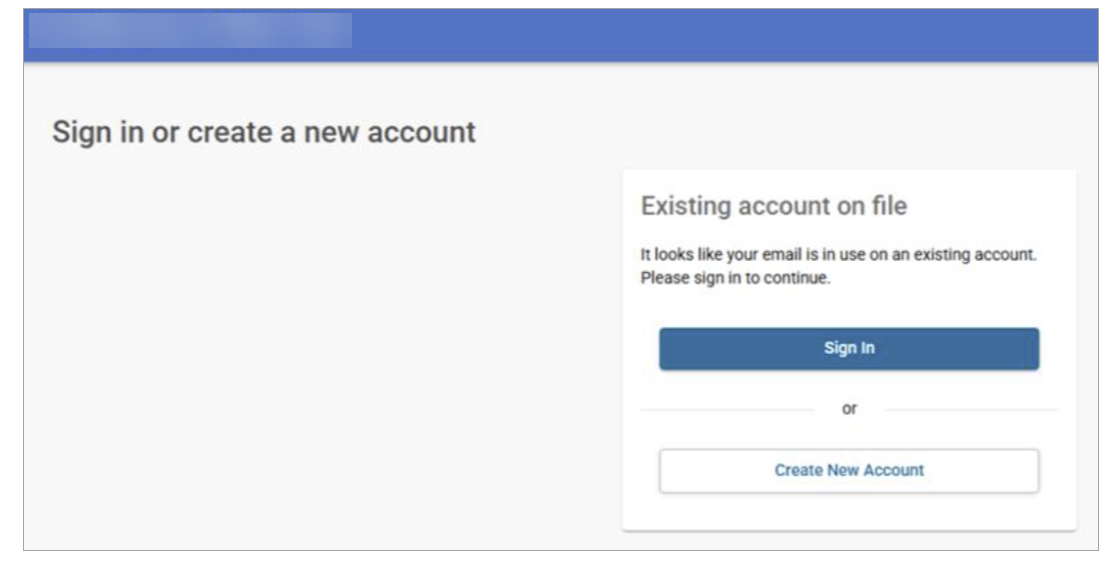
If the system recognizes the parent has an existing user account with FACTS based on the email, they will be prompted to Sign in. Once the parent clicks Save, they will be redirected to the create an application page within five seconds. |
 |
A user is not receiving the MFA verification email or the password reset email.
- Verify that the user's email inbox is not inactive, or that the email is not in their spam or junk folder.
- Verify Email Authentication setup
- Review SPF and DKIM records
Parents with children at more than one FACTS school experience lockouts or confustion when logging in.
MFA is designed for one login across all systems. Make sure the user has the same email adress on all accounts so that they link, and is not already logged into another school in the same browser.
A user entered the correct verification code, but receives an error saying it is invalid.
The following issues may cause this error:
- The code is expired
- The browser session has cached data
- The browser autofill is interfering
- The user is already logged in elsewhere
Clear cache & cookies for all time.
When a parent or staff member tries to log in, they receive an error saying the system does not recognize the username.
Select Forgot username/password to identify if you are using the correct username.
Users are receiving email change notifications before they have set up their MFA account.
When MFA is enabled for your school it may inadvertently trigger email notifications indicating that parent demographic information had changed. No actual demographic data was modified.
A family individual sees a screen directing them to merge accounts when logging into Family Portal.
This is a legitimate screen and process. The family individual was redirected to the Self-Service Account Merge flow after the system found they lack Family Portal access but likely own another account that does have access.
An authentication method shows for the user but was not actually set up.
- Remove MFA from the user
- Have them reset their password
- Send them a new create account invite to set up MFA again
A parent or staff member's username is listed as "migration."
This is not an error. This means that the person's username was not unique across all of FACTS and needs to be updated.
- Once the parent or staff member attempts to log in to the SIS with their existing username and password, they will be prompted to setup a new username and password that is unique.
Use Create a Report: Family to build a report of individuals with usernames that contain "migration" who have not logged in and may need to update their username.
- There may be some individuals in the report who do not need their usernames to be updated. For example, individuals in past families that are never coming back will likely not log in again and do not need to update their username.
Example Create A Report fields

FAQs - General
Review questions about why MFA is important and when the changes will be happening.
FAQs - Impact
Review questions about MFA impact to daily processes.
FAQs - Usernames, passwords, and email addresses
Review questions about changes to usernames, passwords, and email address requirements.
What are the username and password requirements?
- Usernames must be unique across all of FACTS, but do not have a character limit or need special characters
- Email #1 must be unique
- Passwords are case sensitive
- Passwords may not be reused for the same user, up to the last four passwords used
- Passwords must:
- contain at least 12 characters
- contain at least one letter
- contain at least one number
- include at least one special character: ! @ . # $ % ^ * ( ) _ + -
- not start or end with a space
- not include any invalid special characters
Will all SIS users need to create a new username?
For some users, no changes are necessary. However, if a user’s username is already in use in the FACTS system, they are prompted to choose a new one during login. Similarly, if their password doesn’t meet updated security requirements, they’ll be asked to update it at that time.
Do usernames need to be unique? What happens if a user's username is not unique when they log in?
Yes, usernames must be unique across all FACTS users, not just within your school or district. If a username is not unique at login, the user will be prompted to create a new one.
Is using an email address as a username recommended?
Using an email address as the username may ensure uniqueness, but is not required.
Do students still need unique usernames?
Yes, students must have unique usernames even though MFA does not apply to them.
Can a parent use the same username from their application to complete Enrollment?
Yes, families will be able to utilize the same user account they created to apply to the school to complete their enrollment and access the Family Portal.
As part of onboarding I setup a username and password for my staff, will I be able to continue assigning them to the classroom and schedule if they don't have a username?
Yes, a user account is not required to assign a teacher to a classroom or add them to a security group. When you’re ready for the staff member to log in, you can initiate an email from FACTS to create their user account.
Schools can see which staff members have not yet created their accounts and can send them the invite email either individually or in bulk.
Can we still update student usernames and passwords?
Yes, staff will retain the ability to create and edit usernames and passwords for student accounts. This functionality will remain unchanged with the upcoming updates.
Will I still be able to see the username for staff and parents in the SIS?
Yes, if your security rights currently include the ability to view login information, you will have access to view usernames for staff and parents.
Can school admins still reset passwords for parents or staff members? Will I be able to initiate the reset password email on behalf of the staff or parent?
With MFA enabled, school admins can no longer reset passwords for parents or staff. Users may click Forgot password? on the login screen or school admins may send a password reset email directly from the the Family Individual or Staff Login Management screen. Parents may also contact FACTS Financial Management parent support at 1-866-441-4637.
Some families mentioned they don't receive the password reset emails in a timely fashoin, how do you know this change will solve for that?
As part of this update, the SIS will begin using the same delivery service for account creation and password reset emails that the financial system has been using for a few years, which has been proven to provide reliability and consistency in email delivery. While this update should improve email delivery times for password reset, it’s important to note that no email system can guarantee 100% delivery, as factors like spam filters or settings outside of our control can impact receipt.
What steps will parents take to set up their account?
| User Type | Steps | Email invitation screenshot |
|---|---|---|
| First Time Users |
|
|
| The user already has a FACTS account at another school |
|
Can two users share the same email address?
We recommend that every user should have a unique email address, as sharing may cause login or account errors. For example, if an email is shared by two users, and one of them requests a password reset, the system will generate and send two separate password reset emails to the email address, one for each user's account. The user would then need to be careful to select the correct reset notification so that they do not reset the password and change the credentials of the other user.
Sharing email addresses is not recommended, including an Email #2 that is the same as another user's Email #1.
What if an account doesn't have an email address, for example substitute teachers? Do users without email addresses need one?
An email #1 address is required for MFA. Schools may need to create a school-domain email for these accounts. Any user, staff, student, or parent who logs in must have an email address. Users that will not log in, such as some grandparents, do not need one.
How can I identify users that are using the same email address?
Use the Duplicate Emails Report. You may also Create a Report to make a list of every user and their email address, then sort by the email to identify any duplicates.
How can a user update their own username, password, or authentication questions?
Any user, staff, or parent may update their own username, password, or authentication questions from within their account.
- Sign in to the account. This is Family Portal for family inidividuals, or the SIS for staff members.
- Click on the initials in the upper right corner.
- Select My Profile.
- Update login information, or scroll down to the MFA section to update the authentication method.
Parents may also contact FACTS Financial Management parent support at 1-866-441-4637 for assistance.
FAQs - Future Enhancements
Review questions about what the future of MFA looks like and any planned enhancements.