
Multi-Factor Authentication (MFA) Troubleshooting
| Purpose |
Review the login troubleshooting guide for Multi-Factor Authentication (MFA) with FACTS SIS. |
|---|---|
| Related Articles | Set Up Multi-Factor Authentication for FACTS SIS Checklist: Understand Multi-Factor Authentication (MFA) Basics Manage Multi-Factor Authentication Credentials and Settings |
| Watch a Video | Multi-Factor Authentication Training Class Video Understand MFA Basics Training Class Video |
| Explore eLearning | Troubleshooting MFA Login Issues |
Overview
Administrators and school office staff may use this troubleshooting guide to get answers to common questions about Multi-Factor Authentication (MFA) See Why Multi-Factor Authentication Matters for more information about MFA and resources to share with families in both English and Spanish.
Use ctrl+f on this article to search for a specific error.
Fix a login error
Review solutions to common errors during the login process.
A student is unable to access Family Portal. Are students required to use MFA?
Students are not required to use MFA. However, students may be prompted to update usernames or passwords. Use Manage Logins to update student usernames, passwords, and email addresses in bulk.
Student accounts must meet the following criteria:
- a valid email address
- a username that is unique across all FACTS products
- a password that meets the new requirements
A valid, mail-receiving address is required on file for each student who signs into Family Portal. A workaround for schools that do not wish for their students to have or recieve emails is to add one generic, monitored mailbox in Email #1 for every student. That mailbox belongs to the school, not the students, and no student ever logs into it or checks it. The address only needs to be able to receive mail so the system can confirm it's real. Each student's other account remains in Email #2. Any integrations that currently reference Email #1 would need to be updated to reference Email #2 instead, so this should be coordinated before the change is made, to avoid disrupting existing classroom or rostering setups.
The MFA invite displays as Sent but there is no username listed.
The user must click the registration link in the email, then create a new account or log into their existing FACTS account.
A parent or staff member selected the wrong authentication method during their setup.
If a parent or staff member needs to change their authentication preferences they may contact account support to verify their authentication questions and request MFA to be removed. The removal will allow them to select their preferred authentication method the next time they log in.
- School contact FACTS SIS: 1-866-800-6593
- Parent contact FACTS Financial Management: 1-866-441-4637
They may also update their selected method themselves from inside their account.
Users get an error when trying to log in through a bookmark.
Clear cache and cookies, then log in directly at factsmgt.com. Resave any stored bookmarks.
A parent is unable to start an application for my school.
| Steps | Example screenshots |
|---|---|
|
The parent will need to Create an Account if they are new to your school. Then they will receive an email account invitation to Register. |
 |
|
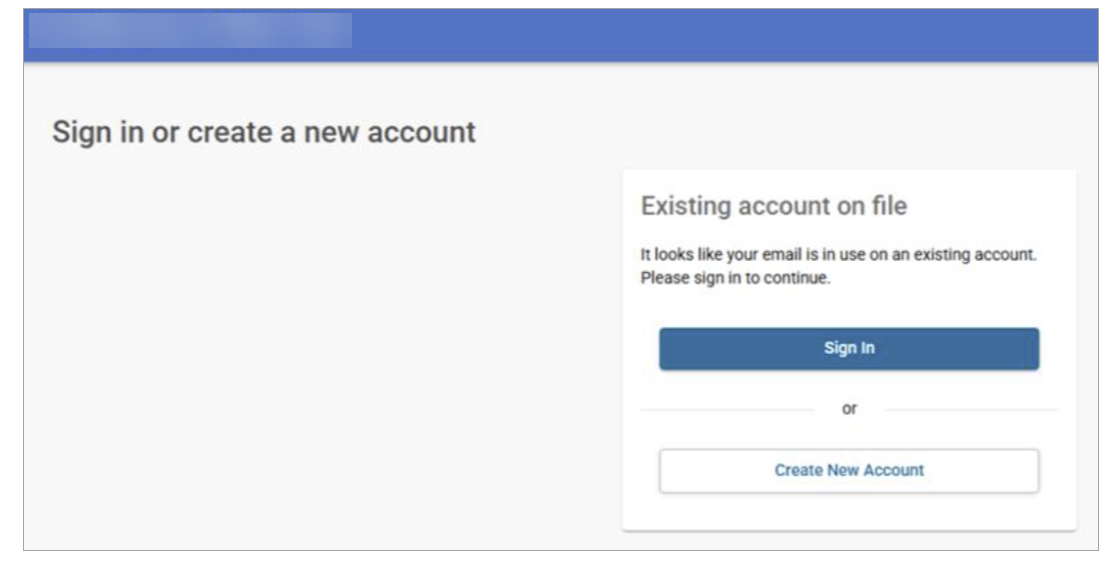
If the system recognizes the parent has an existing user account with FACTS based on the email, they will be prompted to Sign in. Once the parent clicks Save, they will be redirected to the create an application page within five seconds. |
 |
A user is not receiving the MFA verification email or the password reset email.
- Verify that the user's email inbox is not inactive, or that the email is not in their spam or junk folder.
- Verify Email Authentication setup
- Review SPF and DKIM records
Parents with children at more than one FACTS school experience lockouts or confustion when logging in.
MFA is designed for one login across all systems. Make sure the user has the same email adress on all accounts so that they link, and is not already logged into another school in the same browser.
An authentication method shows for the user, but was not actually set up.
- Remove MFA from the user
- Have them reset their password
- Send them a new create account invite to set up MFA again
A parent or staff member's username is listed as "migration."
This is not an error. This means that the person's username was not unique across all of FACTS and needs to be updated.
- Once the parent or staff member attempts to log in to the SIS with their existing username and password, they will be prompted to setup a new username and password that is unique.
Use Create a Report: Family to build a report of individuals with usernames that contain "migration" who have not logged in and may need to update their username.
- There may be some individuals in the report who do not need their usernames to be updated. For example, individuals in past families that are never coming back will likely not log in again and do not need to update their username.
Example Create A Report fields
