
Create an Account with Multi-Factor Authentication

FACTS Application & Enrollment Multi-Factor Authentication Process
For first time FACTS Application & Enrollment users, use these instructions to create your account and establish your Multi-factor authentication option.

Email verification method
| Steps | Example access code |
|---|---|
Note
|
 |
Authenticator app method
- Click Use authenticator app.
- To register:
- Using an authenticator app on your smartphone, scan the QR code or type in the code provided.
- Using an authenticator app on your desktop, copy and paste the code provided.
- Type the Verification Code from your app to ensure the app is properly linked to your account.
- Click Submit code.
- Select Print.
OR
Download.- In the event that you lose your device or cannot access your authenticator app, these backup recovery codes may be used to access your account and should be stored in a safe place.
- Click Continue. Multi-factor authentication is complete.
- Click the link received via the email invitation from your school.
- Click Create Account.
- Type your school’s District Code, and click Create Account.
- Type your email as provided from the school.
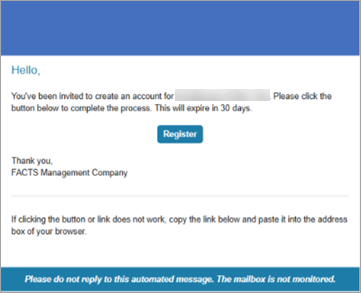
- You will receive an email from noreply@factsmgt.com that includes a link to Register, create an account, and select a Multi-Factor Authentication method.
- Open the email and click Register.
- Create a Username and Password.
- Click Next to choose authentication questions and answers.
- Choose two authentication questions and provide answers.
- When finished, click Save .
- Select and complete the Multi-Factor Authentication (MFA) process using the email verification method options.
OR
Select and complete the Multi-Factor Authentication (MFA) process using the authenticator app method options.- You may choose to receive a verification code by email or use your preferred authenticator app. FACTS does not require or limit which app you use.
After registering and authenticating, you will be automatically redirected to the Admissions platform.
Important
If you have a separate FACTS user account for Financial Aid Management or from another school that uses FACTS, verify that those credentials (username and password) didn't autofill.
FAQs
See Multi-Factor Authentication Troubleshooting & FAQs for FACTS Application & Enrollment Families to review frequently asked questions and troubleshooting help.