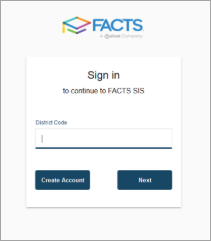
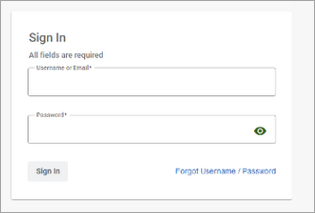
Sign in with your existing username and password for the Family Portal. If you have not set up Multi-Factor Authentication (MFA), you’ll be prompted to complete it during login.
Navigate Family Experience
The dashboard displays a menu on the left side that opens common areas in new tabs. Only relevant products enabled for the school are visible. Select a card from the dashboard to view or complete tasks.
Left Menu items
Menu item
Where the item opens
Admissions
To return to the Family Dashboard, use the original tab in your browser.
Billing
Financial Home
Student
Student Home in the current SIS Family Portal
School
School Home in the current SIS Family Portal for school-wide announcements and resources
Family
Family Home in the current SIS Family Portal
Admissions Cards
Admissions is presented as a card-based experience, grouped by student and stage in the process. Families can see all students and applications at once, quickly understand what is in progress vs. complete, then take action directly from the dashboard.
Card
Description
Application Cards (Admissions Step 1)
Application cards display all Admissions applications for each student.
Each Application card shows:
Student name and grade
School year
Application status
Available actions:
Start new application
Continue an in-progress application
Delete an application (when applicable)
Download a completed application
Enrollment Cards (Admissions Step 2)
Enrollment is part of Admissions and is shown as a separate section to clearly distinguish enrollment actions from applications.
Each Enrollment card shows:
Student name
School year
Enrollment status
Available actions:
Start Enrollment
Continue an in-progress enrollment
Download a submitted packet
Decline enrollment (if enabled)
Selecting an action takes families directly to the Enrollment packet.
Checklists Cards
Available configured checklists display outstanding tasks for each student.
Financial Aid Cards
Families can see all students and applications at once, track Financial Aid application status, then complete required Financial Aid tasks directly from the dashboard.
Card
Description
Financial Aid Cards
Financial Aid cards display all Financial Aid applications for each student.
Each Financial Aid card shows:
Student name and grade
School year
Application status (In Progress or Complete)
Available actions:
Apply for YYYY-YYYY
Continue an in-progress application
Delete an application (when applicable)
Download a completed application
Award Cards
Award cards display all awards for each student.
Each card shows:
Student name and grade
Award status
Award year
Notification date
Available actions:
View the award
Billing Cards
Card
Description
Payment Plans Cards
Payment Plans cards display Payment Plan information for each school year.
Each card shows:
Student name and grade
School year
Payment Plans status
Next payment
Payment due date
Available actions:
Set up payment plan
View details
Make a payment
Incidental Charges Cards
Incidental Charges cards display Incidental Billing information for each school year.
Each card shows:
School year
Status
Amount due
Payment due date
Available actions:
View details
Make a payment
Prepay Accounts Cards
Prepay Accounts cards display information for each prepay account.