
Access the Family Portal and Multi-Factor Authentication

FACTS SIS Multi-Factor Authentication Login Process
Upon first log in with Multi-Factor Authentication (MFA), follow these steps to access the Family Portal.

Email verification method
| Steps | Example access code |
|---|---|
|
 |
Authenticator app method
- Click Begin.
- Click Use authenticator app.
- To register:
- Using an authenticator app on your smartphone, scan the QR code or type in the code provided.
- Using an authenticator app on your desktop, copy and paste the code provided.
- Follow the remaining setup prompts in your authenticator app.
- Type the Verification code from your app to ensure the app is appropriately linked to your account.
- Click Submit code.
- You may print the recovery codes.
OR
Click Download recovery codes.- In the event you lose your device or cannot access your authenticator app, use these backup recovery codes to access your account and store them in a safe place.
- Click Continue, and the multi-factor authentication is complete.
- Wait for the system to redirect you.
OR
Click Continue. - Select and answer two authentication questions.
- Click Save to log in to your account.
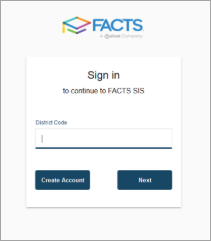
- Navigate to FACTSmgt.com, click Family Portal Login, enter your school’s District Code, and click Next.
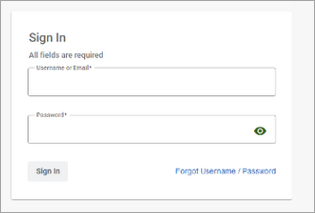
- Sign in with your existing FACTS SIS username and password for the Family Portal.
Important
If you have a separate FACTS user account for Financial Aid Management or from another school that uses FACTS, verify that those credentials (username and password) did not autofill.
- If you have not set up Multi-Factor Authentication (MFA), you’ll be prompted to complete it during login. You may choose to receive a verification code by email or use any authenticator app of your preference. FACTS does not require or limit which app you use.
- Select and complete the email verification method options.
OR
Select and complete the authenticator app method options.
FAQs
See Multi-Factor Authentication Troubleshooting & FAQs for Families to review frequently asked questions and troubleshooting help.