
FACTS SIS Multi-Factor Authentication Create New Account

FACTS SIS Multi-Factor Authentication Process
For first time FACTS SIS users, use these instructions to create your Family Portal account and establish your Multi-factor authentication option.

Email verification method
| Steps | Example acces code |
|---|---|
|
 |
Authenticator app method
- Click Begin.
- Click Sign Up Using App.
- To register:
- Using an authenticator app on your smartphone, scan the QR code or type in the code provided.
- Using an authenticator app on your desktop, copy and paste the code provided.
- Follow the remaining setup prompts in your authenticator app.
- Once completed, return to the MFA setup screen and click Next.
- Enter a Verification Code from your app to ensure that the app is appropriately linked to your account.
- Click Next.
- Select Print.
OR
Download.- In the event that you lose your device or cannot access your authenticator app, these backup recovery codes can be used to access your account and should be stored in a safe place.
- Click Next. Multi-factor authentication is complete.
- Click Next to choose authentication questions and answers.
- Choose two authentication questions and provide answers.
- When finished, click Save to log in to your account.
- Navigate to FACTSmgt.com, click Login Here.
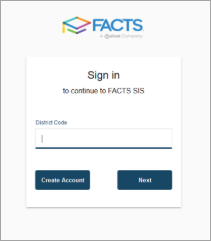
- Type your school’s District Code, and click Create Account.
- Type your email and click Create Account.
- The system generates an email invitation.
- Open the email and click Register.
- Create a Username and Password.
- Select and complete the Multi-Factor Authentication (MFA) process using the email verification method options.
OR
Select and complete the Multi-Factor Authentication (MFA) process using the authenticator app method options.- You may choose to receive a verification code by email or use any authenticator app of your preference. FACTS does not require or limit which app you use.
Important
If you have a separate FACTS user account for Financial Aid Management or from another school that uses FACTS, verify that those credentials (username and password) didn't autofill.
FAQs
Review some frequently asked questions.
I'm having login issues, what should I do?
- Clear your browser cookies and cache.
- Log completely out of your account before trying again.
I forgot to click Register on the email, what should I do?
You must click the registration link in your email to complete setup. The School may resend the registration email.
How do I change the MFA Method, Username, Email, or Authentication Questions?
You may update your MFA method:
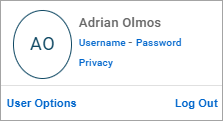
- Sign in to Family Portal.
- Click on your initials.
- Select My Profile – Privacy.
- You may contact FACTS Payer and Applicant Services at 866-441-4637 for assistance.