
FACTS SIS Multi-Factor Authentication Login Process

FACTS SIS Multi-Factor Authentication Login Process
Upon first log in with Multi-Factor Authentication (MFA), follow these steps to access the Family Portal.
Example images
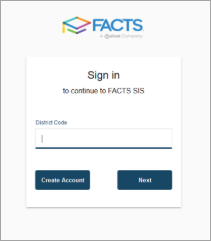
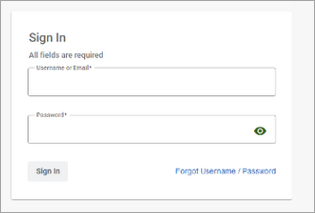
| District Code example | Sign In example | Multi-factor example |
|---|---|---|
 |
 |
 |
Email verification method
| Steps | Example acces code |
|---|---|
|
 |
Authenticator app method
- Click Begin.
- Click Sign Up Using App.
- To register:
- Using an authenticator app on your smartphone, scan the QR code or type in the code provided.
- Using an authenticator app on your desktop, copy and paste the code provided.
- Follow the remaining setup prompts in your authenticator app.
- Once completed, return to the MFA setup screen and click Next.
- Enter a Verification Code from your app to ensure that the app is appropriately linked to your account.
- Click Next.
- Select Print.
OR
Download.- In the event that you lose your device or cannot access your authenticator app, these backup recovery codes can be used to access your account and should be stored in a safe place.
- Click Next. Multi-factor authentication is complete.
- Click Next to choose authentication questions and answers.
- Choose two authentication questions and provide answers.
- When finished, click Save to log in to your account.
- Navigate to FACTSmgt.com, click Family Portal Login, enter your school’s District Code, and click Next.
- Sign in with your existing FACTS SIS username and password for the Family Portal.
Important
If you have a separate FACTS user account for Financial Aid Management or from another school that uses FACTS, verify that those credentials (username and password) didn't autofill.
- If you have not set up Multi-Factor Authentication (MFA), you’ll be prompted to complete it during login. You may choose to receive a verification code by email or use any authenticator app of your preference. FACTS does not require or limit which app you use.
- Select and complete the email verification method options.
OR
Select and complete the authenticator app method options.
FAQs
Review some frequently asked questions.
I'm having login issues, what should I do?
- Clear your browser cookies and cache.
- Log completely out of your account before trying again.
How do I change the MFA Method, Username, Email, or Authentication Questions?
You may update your MFA method:
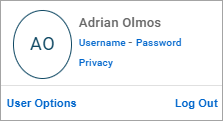
- Sign in to Family Portal.
- Click on your initials.
- Select My Profile – Privacy.
-
- You may contact FACTS Payer and Applicant Services at 866-441-4637 for assistance.
-