
Family Portal - Prepaid Lunch Orders

Place a lunch order
Parents or guardians may apply any available credits when placing their order. If a negative balance exists on the lunch account, it will display and must be included in the payment.
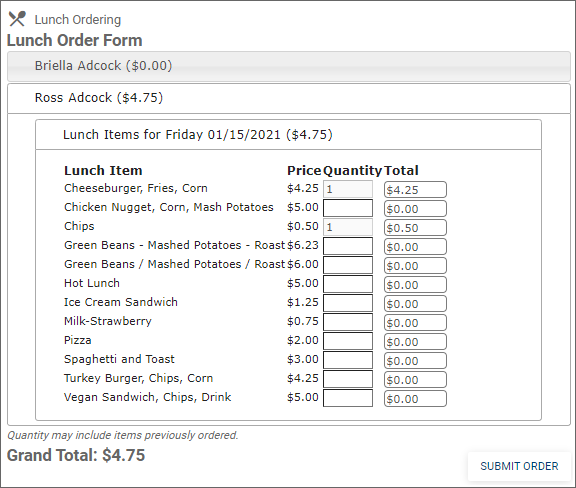
- Example order form
-
The Lunch Order Form expands listing each date an order may be placed.
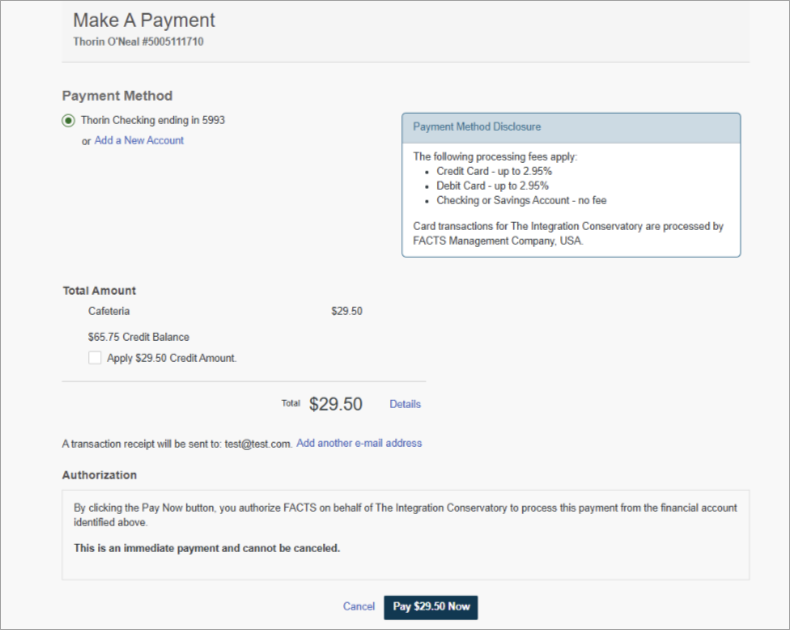
- Example payment screens with credits and negative balances
-
Scenario Screenshot - A credit amount is available but not selected.
- The customer's selected payment method is charged.
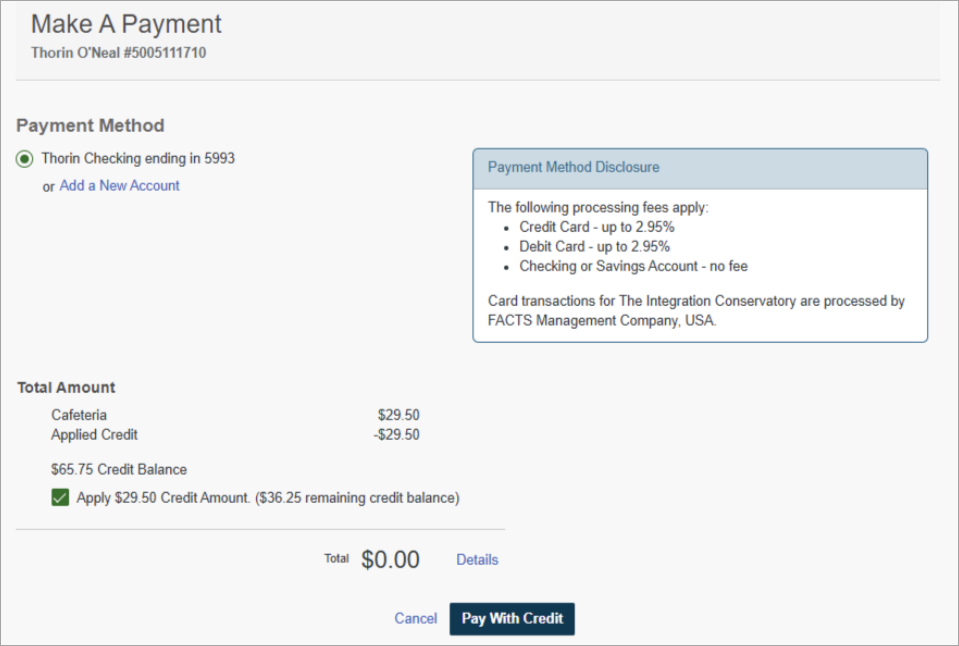
- A credit amount greater than the balance due is selected.
- The order total is subtracted from the credit balance.
- A credit amount less than the balance due is selected.
- The available credit amount is subtracted from the order total, and the remaining balance is charged to the customer's selected payment method.

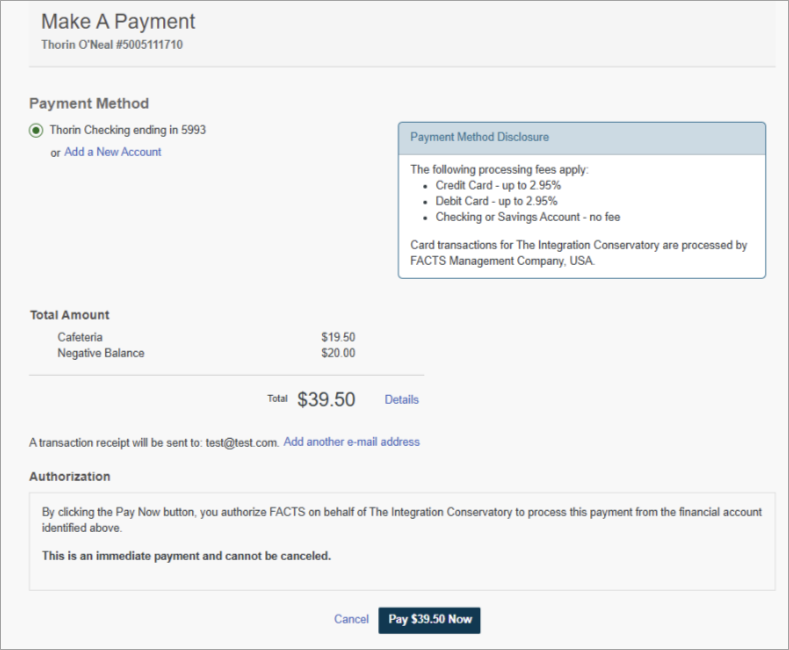
- There is an existing negative balance on the account.
- The negative balance is added to the order total, and the total amount is charged to the customer's selected payment method.
- From FACTSmgt.com, click Log In Here, then click Family Portal Login and log in.
- From the Menu icon
 click Student, then select Lunch.
 - Click +CREATE WEB ORDER.
- Click the student name to place an order.
- Click the date to place an order.
- Type the number of items to order for the student in the Quantity column. The Total column displays the cost.
- Repeat for all dates and all students. The Grand Total is listed at the bottom.
- Click Submit Order.
- The Online Lunch Payment screen displays after you place your order.
- Type payment information and click Submit.
- Please wait a few seconds while the payment transaction completes.
Tips
- We suggest using Google Chrome or Firefox to place lunch orders.
- Do not leave the order or payment screens until the transaction is complete, which may take several seconds.
- After selecting a bank account or credit card for payment, any available credits display to apply to the transaction.